
02Start
Getting started
Connect your Zoho Books organization, choose what you want to sync, and finish the few settings that only you can decide. Most stores are set up in under ten minutes.
Step 1: Connect Zoho Books
The recommended way to connect. You will not need a client ID, a client secret, a region, or an organization ID — the app asks Zoho for all of that.
Open the Connection page
Go to the Connection page in the left-hand navigation, or start the onboarding wizard and continue to step 2. Either place offers the same button.Click Connect with Zoho
The app hands you over to the Zoho consent screen. This opens outside the Shopify admin frame, which is normal and expected — Zoho does not allow its login to be shown inside another site.Sign in to Zoho and approve access
Sign in with a Zoho user who is allowed to authorize apps for your organization, then approve the request. Zoho sends you straight back to the app.Confirm the organization
If your Zoho account has exactly one organization, the app selects it for you and you are done. If you have more than one, you must choose which one to sync with — see below.
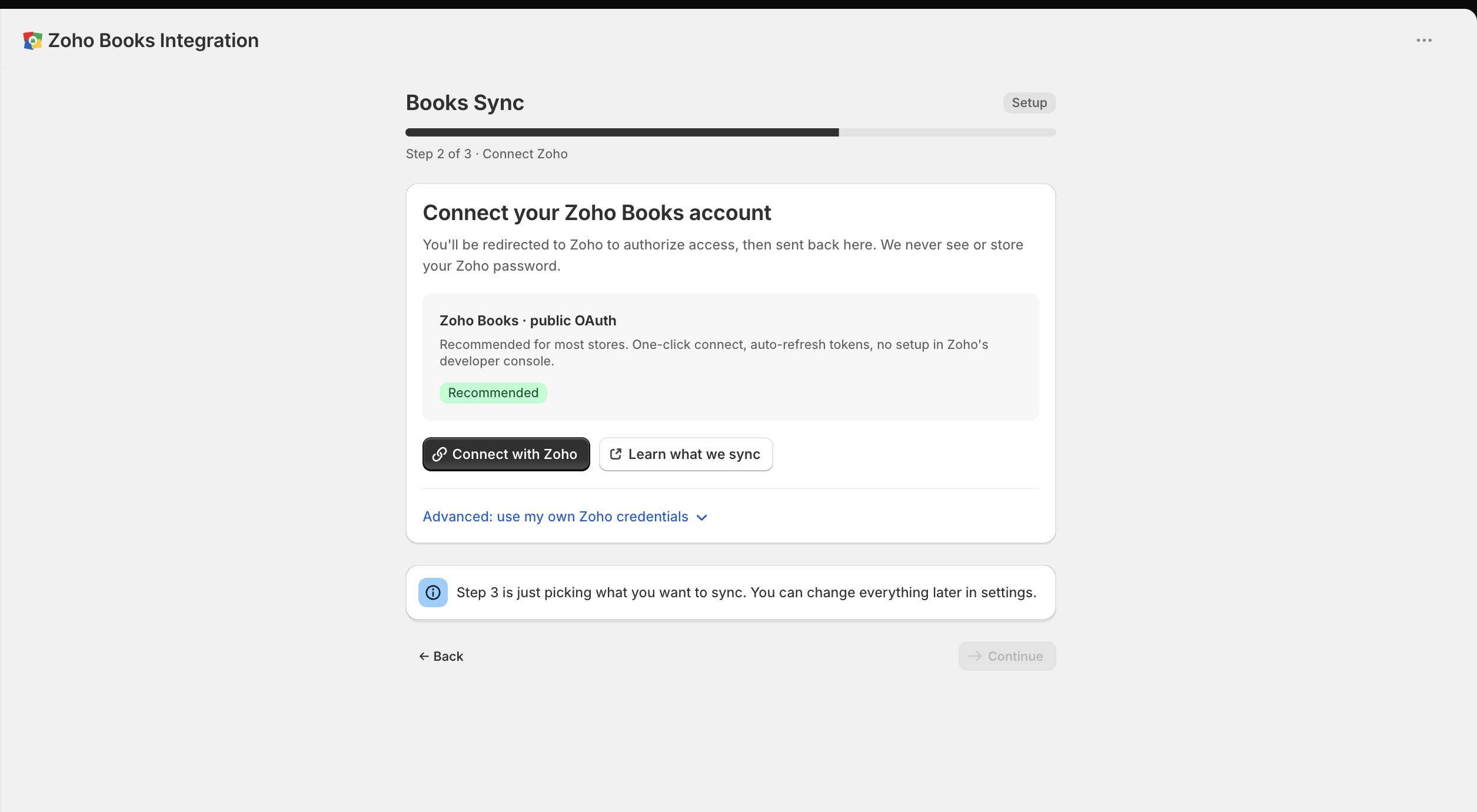
Step 2 of the setup wizard. The Connect with Zoho button is all you need — there is nothing to fill in.
What the app asks Zoho for
What is set for you, and what you still choose
Connecting settles most of the plumbing. A few decisions are yours, and a couple of them are made later, on the sync pages rather than on the Connection page.
| Detail | Who sets it | Where |
|---|---|---|
| Zoho data centre and region | SuccessAutomatic | Detected from Zoho when you approve access. You never pick it by hand on the one-click path. |
| Access to your Zoho account | SuccessAutomatic | Renewed quietly in the background. You will not be asked to sign in to Zoho again as part of normal running. |
| Zoho organization | AttentionSometimes yours | Chosen for you if your Zoho account has one organization. If you have several, pick one from the Select Organization dropdown on the Status tab of the advanced panel. Nothing syncs until an organization is selected. |
| Shopify location to Zoho warehouse | Yours | Set on the Products & inventory page, not on the Connection page. |
| Tax mappings, payment gateways, base currency | Yours | Set on the Order sync page, not on the Connection page. |
Using your own Zoho credentials
Advanced, and optional. Most merchants should skip this. Use it only if your organization requires the connection to run through a Zoho client that you own and control.
Open the advanced panel
On the Connection page, expand Advanced: Use my own Zoho credentials. It has three tabs, and you work through them in order.Tab 1 — Generate Zoho Credentials
This tab shows two read-only values, each with a Copy button: a Homepage URL and an Authorized Redirect URL. Follow the link to the Zoho API console, register a new client there, and paste both values into it exactly as shown. Zoho then gives you a client ID and a client secret.Tab 2 — Enter Credentials
Paste in the Client ID and Client Secret, and choose your Regional Domain from the list of nine Zoho regions: US, EU, AU, SG, IN, JP, UK, CA, and SA. All three fields are required. Save with the save bar, then click Connect to Zoho Books, which opens a Zoho consent window.Tab 3 — Status
Once the consent window closes, this tab shows the state of the connection, and lets you pick your organization if your Zoho account has more than one.
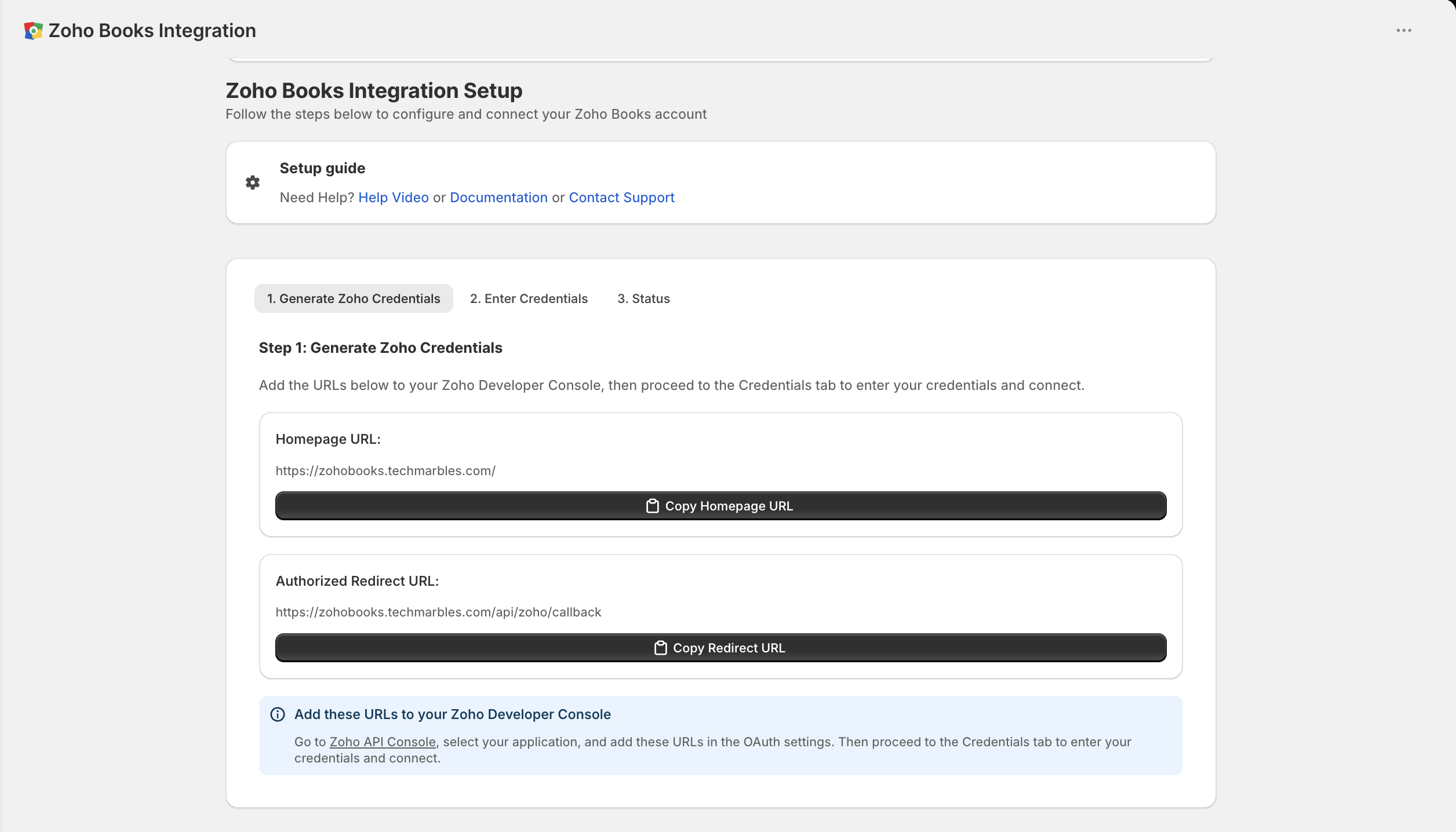
Tab 1. Copy both URLs into the client you register in the Zoho API console.
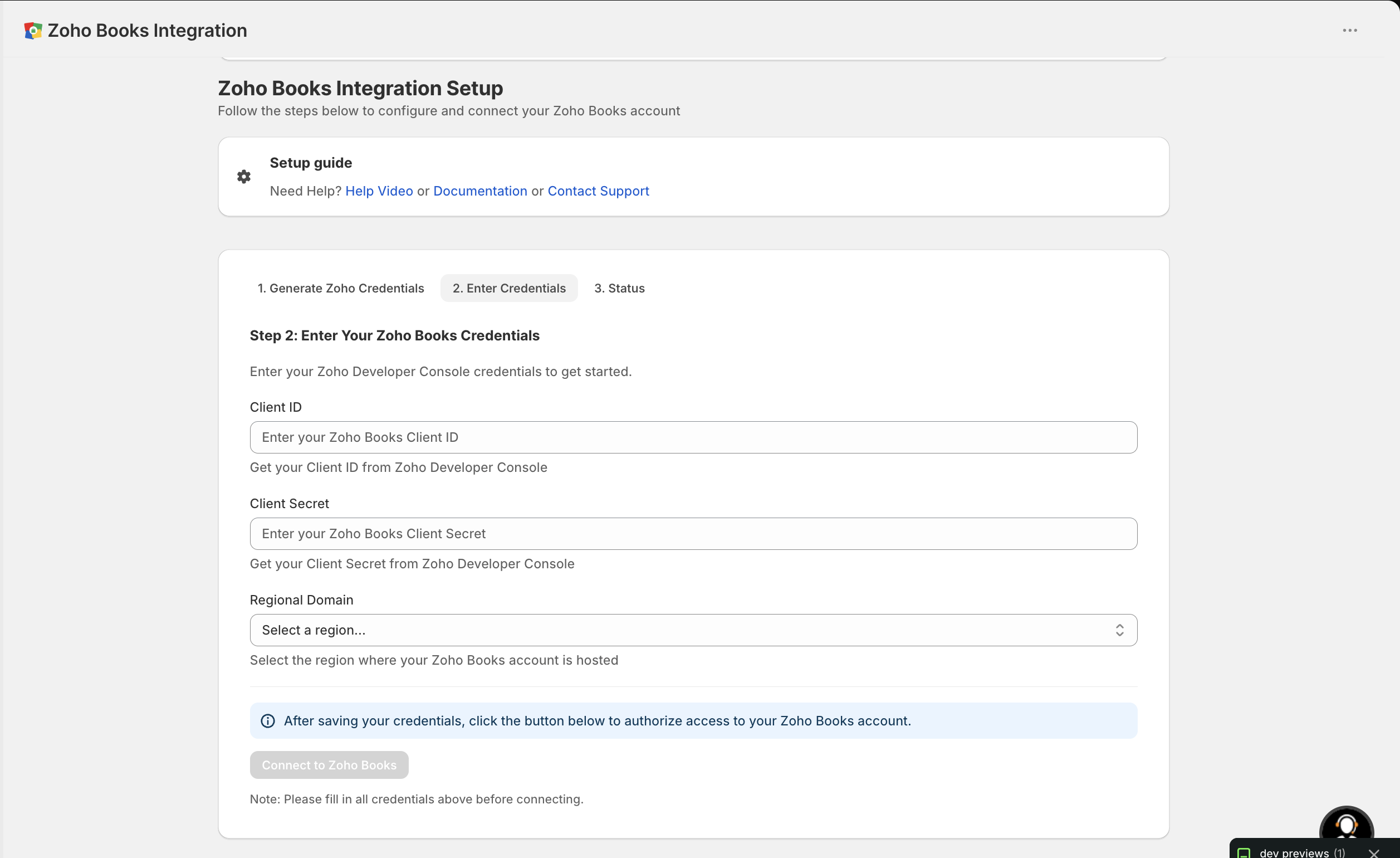
Tab 2. The Connect to Zoho Books button stays disabled until all three fields are filled in and saved.
You cannot finish this inside the onboarding wizard
Step 2: Choose what to sync
The onboarding wizard is three short steps — a welcome screen, connecting Zoho, and picking what to sync — followed by a confirmation screen.
On the third step you tick the areas you want the app to handle:
- Customers
- Orders, payments, and refunds
- Products and inventory
These choices decide which syncs the app is permitted to run. They are a starting point, not a final answer: every sync page has its own settings that you can change afterwards.
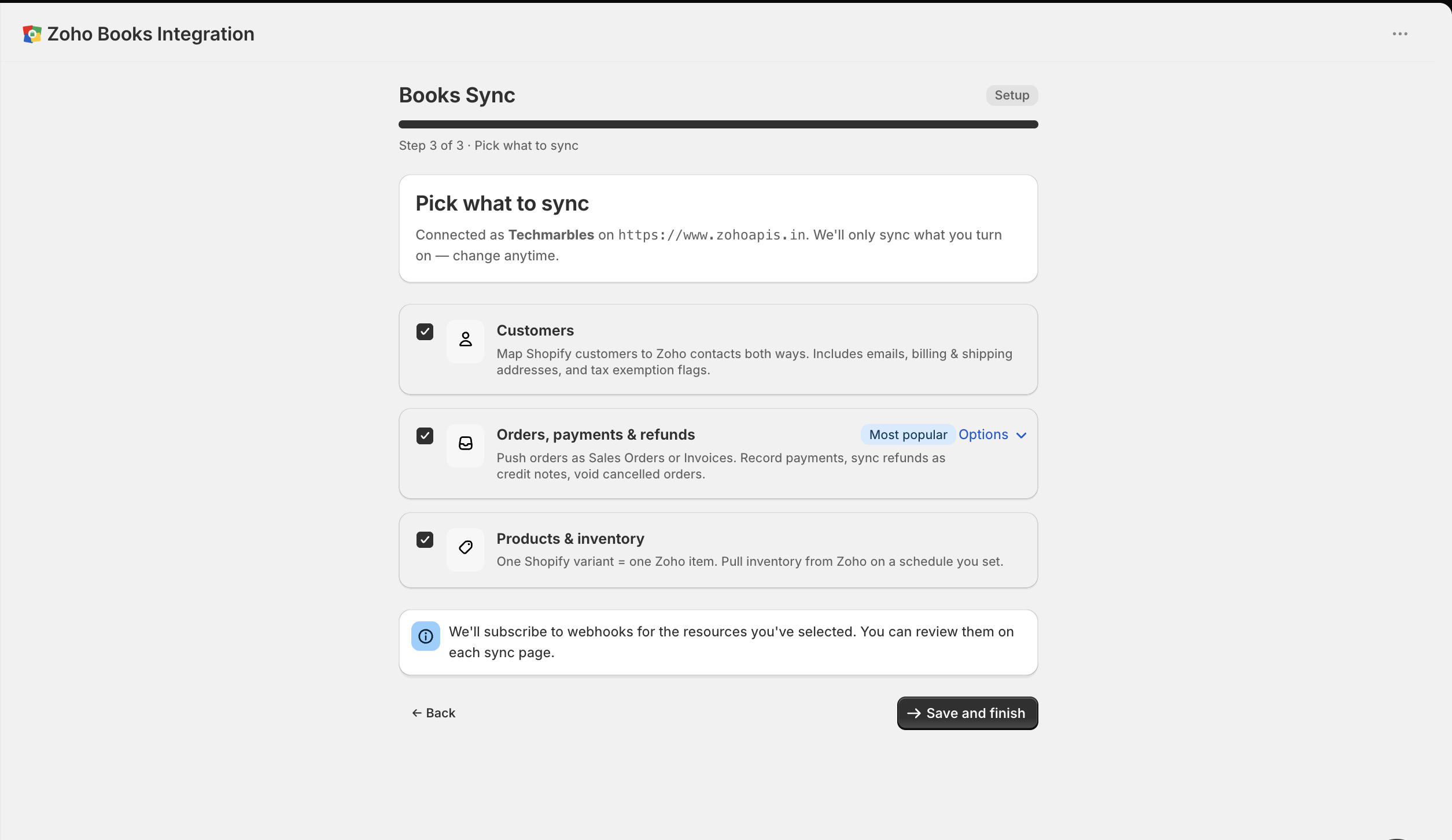
Step 3. Leave Orders, payments and refunds ticked unless you are certain you will never want order syncing — see the warning below.
Skipping an area here is not final
Onboarding leaves the Zoho to Shopify pulls off
Step 3: Finish setup on each page
Connecting and onboarding get the app talking to Zoho. These are the settings only you can decide, and each one lives on the page it affects.
| Page | What you still need to do there |
|---|---|
| Products & inventory | Map each Shopify location to a Zoho warehouse, so stock movements land in the right place. Then turn on the Zoho to Shopify pulls — new Zoho items into Shopify, and Zoho stock levels into Shopify — if you want them, because onboarding leaves them off. |
| Customer sync | Shopify to Zoho works as soon as the sync is on. If you also want Zoho contacts pulled into Shopify, switch that on here and choose how often it runs — onboarding never enables it. |
| Order sync | Set your Zoho base currency, map your Shopify tax lines to Zoho taxes, and map each payment gateway to a Zoho payment method and deposit account so payments land in the right bank account. |
| Logs | Nothing to configure. This is where you check that the first records actually arrived in Zoho, and where you retry anything that failed. |
Checking your connection
The Home dashboard and the Connection page both show a badge for the health of the Zoho connection.
| Badge | What it means | What to do |
|---|---|---|
SuccessConnected | The app can reach your Zoho organization and is syncing normally. | Nothing. |
WarningNeeds reauthorization | Your Zoho access was revoked or has expired, and the app could not renew it on its own. Syncing has stopped. | Click Reconnect on the Connection page and approve the Zoho consent screen again. |
CriticalDisconnected | There is no Zoho connection stored for your store. | Connect Zoho Books using either path above. |
What else the Connection page tells you
- Which Zoho organization you are syncing with, and which Zoho data centre it lives in.
- Whether the connection runs through the app's own Zoho client, or through credentials you supplied yourself.
A Credentials valid badge is not proof that your secret is right
Disconnecting
The Disconnect button on the Connection page asks you to confirm, then stops all syncing and clears the stored access to your Zoho account. If you supplied your own client ID, secret, and region, those are kept, so reconnecting later is a single step rather than a fresh setup.
Billing
The app is a paid Shopify subscription with a 15-day free trial.
The sync pages — Customer sync, Products & inventory, Order sync, and Logs — only appear in the navigation once two things are true: your billing is active, and Zoho is connected. If a page you expect is missing, one of those two is the reason.
Cancelling your subscription removes the Zoho connection
Not active in this version
These controls appear on the page and save, but the sync does not read them yet. Leave them at their defaults — changing them has no effect.
- Help Video, in the Setup guide card at the top of the Connection page — the button does not open anything. The Documentation button beside it does work and opens these pages, and Contact Support opens a booking page.
- Cancelling your subscription from inside the app. There is no in-app way to cancel; do it from your Shopify admin.